◷
Activity overview
Shows parents which apps and browsers their child uses, and for how long, in a clear daily summary.
A parent-controlled desktop productivity app that helps children build better study habits and stay focused in a world full of digital distractions.
Desktop only — Broken Timmy runs on Mac and Windows computers. There is no phone or tablet version.
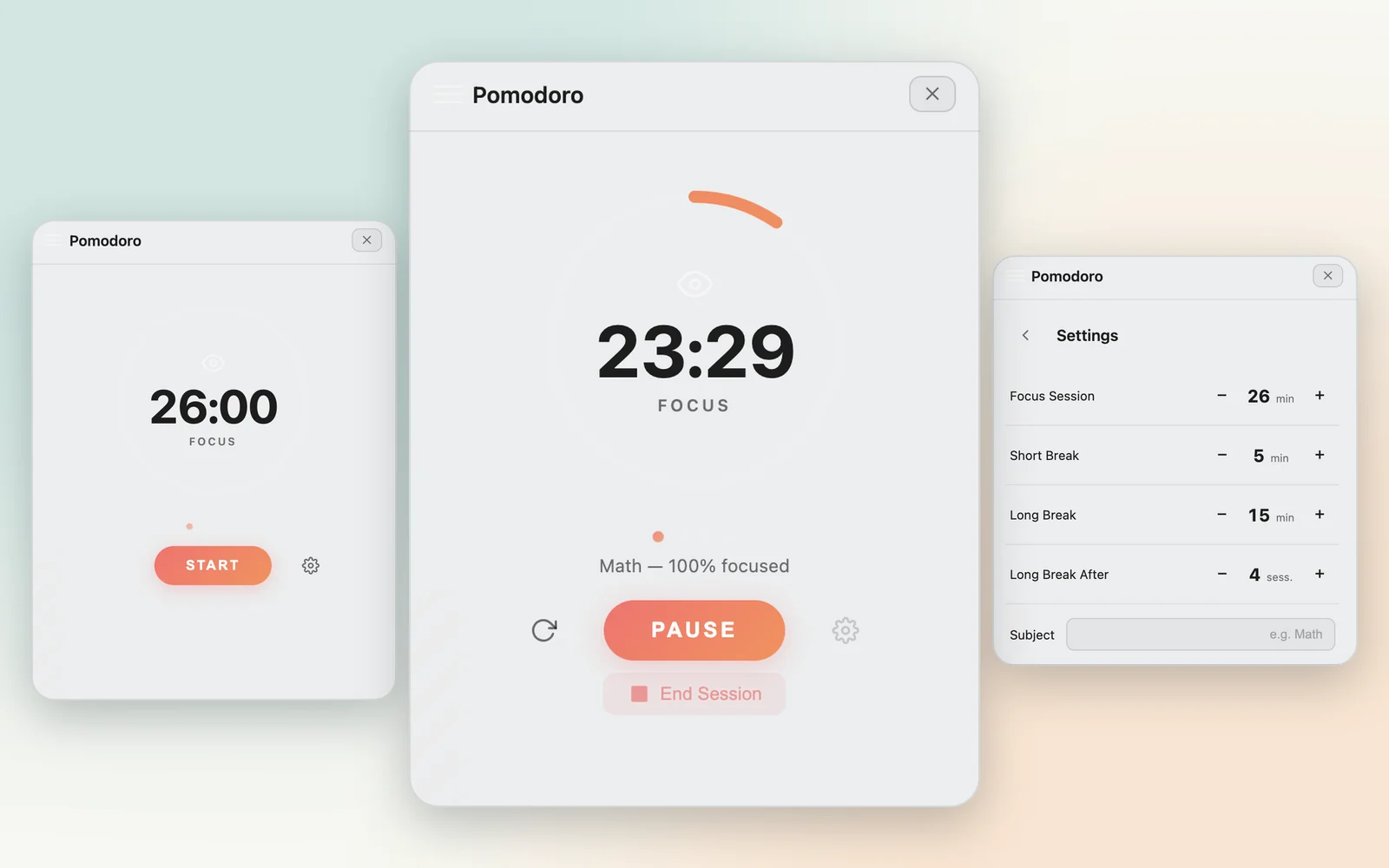
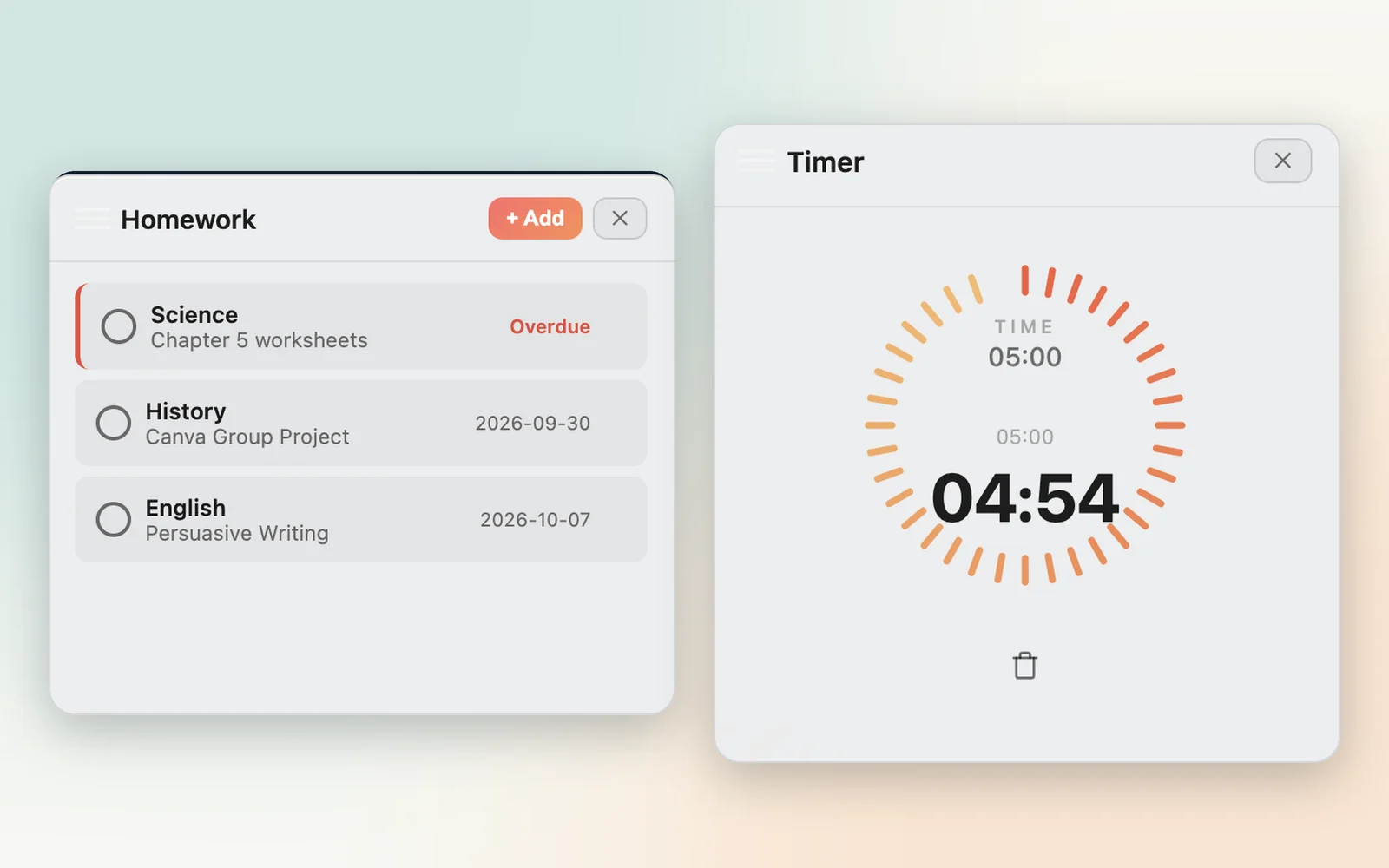
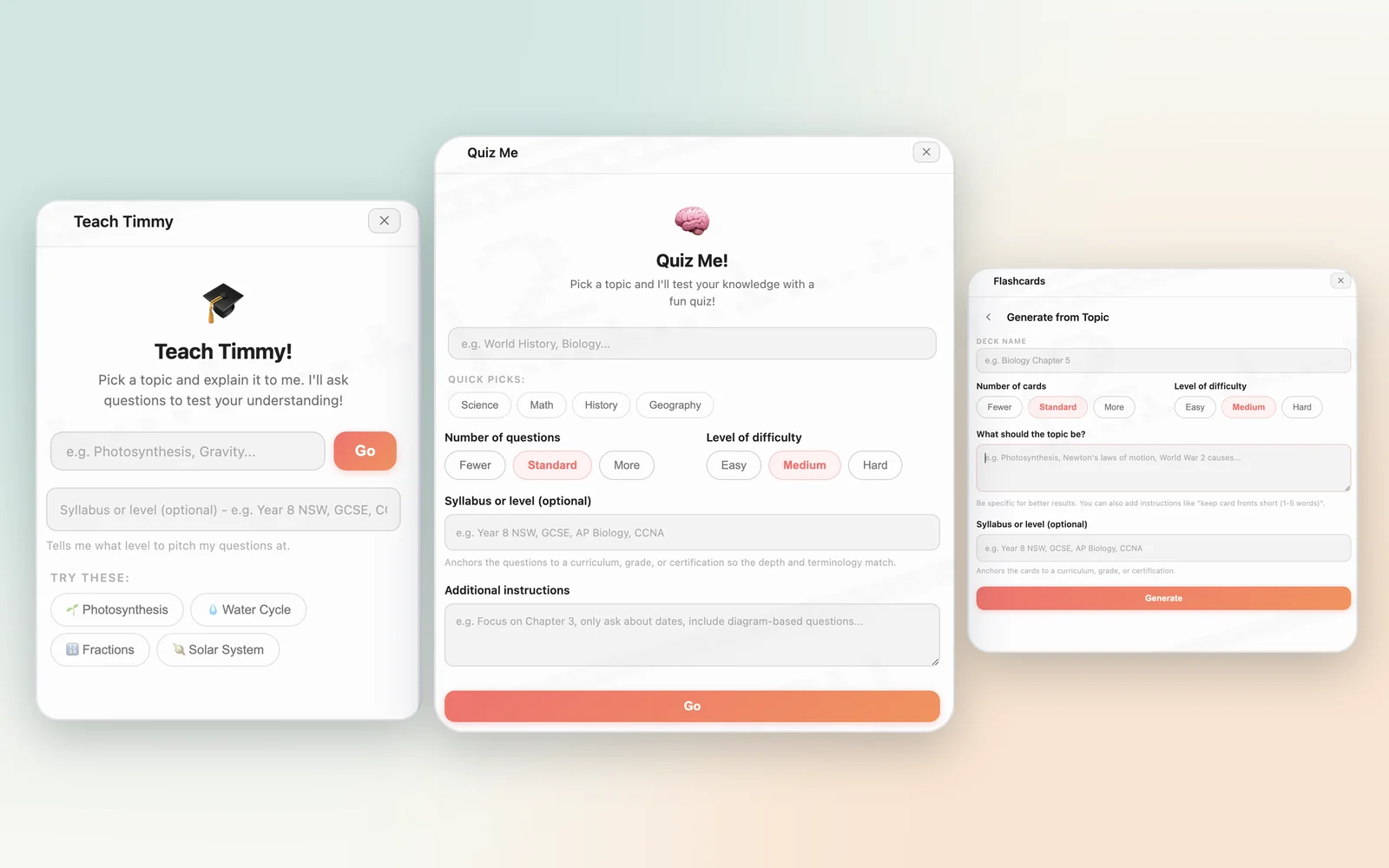
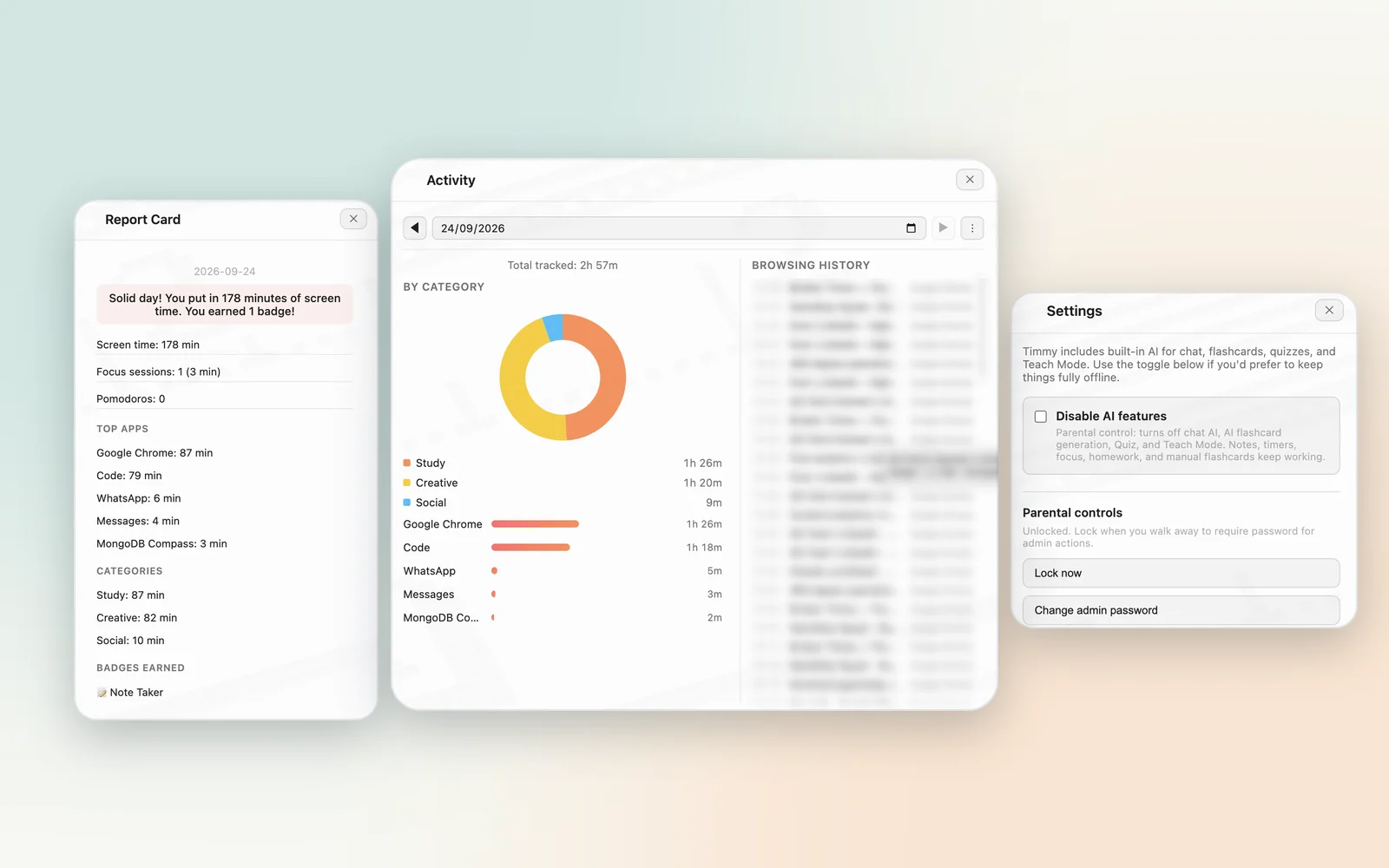
Broken Timmy sits on the desktop as a friendly study companion. It keeps parents informed and helps children notice when they drift off task.
Shows parents which apps and browsers their child uses, and for how long, in a clear daily summary.
Flags private or incognito windows in supported browsers and includes them in the parent’s report. Safari and Arc private windows can’t currently be detected.
A study timer that notices likely distractions — such as social media, streaming or games — and gives a gentle on-screen nudge to get back on track. It warns; it doesn’t block.
Notes, timers, flashcards with spaced repetition, a homework tracker and reminders. Optional AI features add quizzes, a “teach it back” mode and flashcards generated from study documents.
A parent sets a master password during setup, and every parent action needs it. After a restart, Broken Timmy opens in the child’s profile, so settings and reports stay in the parent’s hands.
Protects its settings and records against tampering, repairs them where it can, and lets parents know when someone has tried. It also starts automatically when the computer signs in.
Focus Mode separates what it knows for certain from what it is guessing — and it gives children the benefit of the doubt.
Recognises common distractions and study tools. Well-known distractions, such as popular shopping or streaming sites, are always treated as off task. Works without an internet connection.
Parents can turn on an AI check that compares a browser window’s title with the subject being studied. Unlike the content filter, this check is off by default, and only the subject, app name and window title are sent.
If the AI is uncertain or not confident enough, the child isn’t flagged. If AI is switched off or unavailable, the built-in rules decide.
No parental-control app can prevent every workaround, so Broken Timmy focuses on protecting its records and making tampering visible to parents.
During setup, macOS asks you to approve a few standard permissions for Broken Timmy. Activity tracking, private-window alerts and Focus Mode need them to work.
Install Broken Timmy, create the parent password and add your child’s profile — no extra system permissions are needed.
Activity records, reports and settings are stored on the device. There is no online dashboard, and Broken Timmy does not include advertising or analytics tracking.
What does leave the device:
A dedicated privacy policy for Broken Timmy will be published here before release. Until then, see the Lazy Syntax website privacy policy.
Coming before releaseTell us you’re interested and we’ll let you know when Broken Timmy is available.